


How to Navigate Facebook Ads Manager Like a Pro


Are you overwhelmed by all the tabs and toggles in Facebook Ads Manager? You’re not alone. Many first-time advertisers get lost trying to manage their campaigns effectively. But learning how to navigate Facebook Ads Manager like a pro can save you time, boost ad performance, and help you scale your marketing like never before.
In this guide, you'll discover the key features of Ads Manager, what each section does, how to avoid common mistakes, and expert tools to simplify your workflow.
📑 1. Table of Contents
✅ 2. Highlights / Overview
Three main levels: Campaign, Ad Set, Ad
Understand the structure of Ads Manager.
Why it matters: Organizing your ad efforts starts here.
Tip: Think of it like a funnel — Strategy → Targeting → Creative.
Dashboard metrics at a glance
Overview of performance metrics like CTR, ROAS, and CPC.
Why it matters: Real-time tracking allows quicker decisions.
Tip: Customize your column view to prioritize the right KPIs.
Audience tools and targeting presets
Build and save Custom or Lookalike Audiences.
Why it matters: Helps streamline future campaigns.
Tip: Reuse high-performing audience sets to save time.
A/B testing and ad experiments
Use built-in tools to compare creatives or targeting.
Why it matters: Data-driven decisions = better ROI.
Tip: Always test one variable at a time.
Built-in scheduling and budgeting
Set daily or lifetime budgets, and control when ads run.
Why it matters: Avoids budget overspending or underperformance.
Tip: Use dayparting to show ads during high-converting times.
🔍 3. In-Depth Breakdown
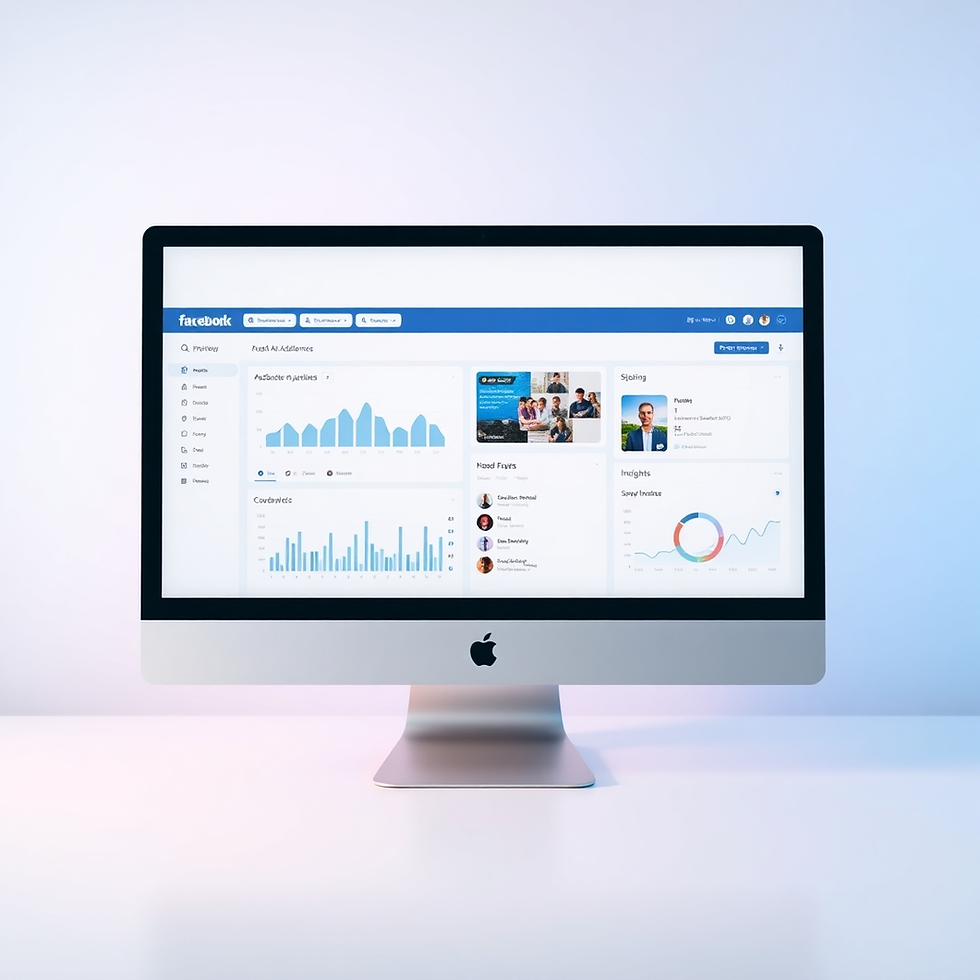
Campaign Level
Definition: This is where you choose your overall marketing objective (e.g., traffic, conversions, leads).
Benefits:
Aligns campaigns with business goals.
Lets you test strategies like brand awareness or sales.
Tips:
Use “Conversions” for sales-focused campaigns.
Choose “Lead Generation” to collect customer info via forms.
Ad Set Level
Definition: The place to define your audience, budget, placement, and schedule.
Benefits:
Fine-tunes who sees your ads.
Controls spending and exposure.
Tips:
Use Facebook Pixel or Custom Audiences for retargeting.
Set placement to “Manual” to test different platforms (e.g., IG only).
Ad Level
Definition: This is where your creative (image, video, text) and CTA live.
Benefits:
Directly impacts performance and engagement.
Tips:
Use high-res images or vertical videos for mobile.
Test 2–3 headlines per campaign to see what sticks.
🛠 4. Practical Tips & Tools
Tools to Use:
Facebook Ads Manager App (mobile version for on-the-go edits)
Meta Business Suite (to manage posts, ads, messages in one place)
Creative Hub (to preview ads before launching)
Time & Money Hacks:
Use Campaign Budget Optimization (CBO) to automatically allocate spending.
Leverage Saved Audiences to launch faster.
Automate reports with Facebook Analytics or Looker Studio.
📝 5. Implementation Guide
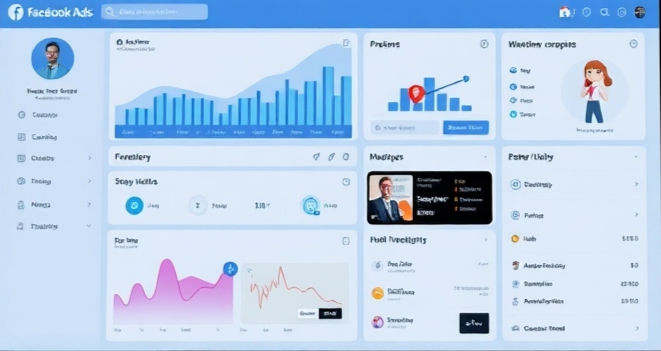
Step-by-Step: Creating Your First Campaign Like a Pro
Go to Facebook Ads Manager → Click “Create.”
Choose your campaign objective (e.g., Conversions).
Name your campaign and enable Campaign Budget Optimization (optional).
Move to Ad Set:
Choose audience (Custom, Lookalike, or new).
Set placements (Auto or Manual).
Set budget and schedule.
Move to Ad level:
Upload your creative assets.
Write headline, primary text, and CTA.
Click “Publish” and monitor performance.
Common Mistakes to Avoid:
Not using Pixel tracking.
Testing too many variables at once.
Ignoring frequency (watch for ad fatigue).
🧭 6. Sample Plan / Template
3-Day Learning & Setup Plan
Day 1: Learn & Explore
Navigate Ads Manager UI.
Watch Meta Blueprint videos (15–20 min).
Explore the structure: Campaign > Ad Set > Ad.
Day 2: Audience & Asset Prep
Create a Custom Audience.
Prepare 2–3 ad creatives (image, text, CTA).
Set up Facebook Pixel on your website.
Day 3: Launch Your First Ad
Create a traffic or conversions campaign.
Choose placements and schedule.
Monitor first results in the dashboard.
❓ FAQs
Q1: Is Ads Manager free to use?A: Yes, it’s free. You only pay when your ads are live and served.
Q2: Can I run Instagram ads through Ads Manager?A: Absolutely. Instagram is one of the placement options.
Q3: What’s the best objective for a beginner?A: “Traffic” is a good place to start. Later, move to “Conversions.”
Q4: How do I know if my ad is working?A: Check metrics like CTR (Click-Through Rate), ROAS (Return on Ad Spend), and Frequency.
Q5: Can I duplicate a successful campaign?A: Yes! Use the “Duplicate” option to copy high-performing ads with ease.
✅7. Conclusion : Facebook Ads Manager Like a Pro
Learning how to navigate Facebook Ads Manager like a pro is the first step toward running ads that convert. Whether you're just starting or refining your ad game, knowing where to find insights, adjust settings, and optimize assets can dramatically improve your campaign results.
👉 Try setting up a test campaign today. Use this guide as your cheat sheet and let us know how it goes!


Comments